At my previous job, I was using this trailer app to access and manage my github pull requests. The trailer app provides an app indicator on top of the menu bar. Clicking on the icon shows a list of pull requests along their status and the list gets automatically updated. This app is only available on MacOS.
After switching to my new job, I started using Ubuntu 20.04 and I couldn’t find an equivalent application. I wanted to see what it takes to create an app indicator application on Ubuntu and maybe create one myself if it’s easy.
A quick google search returns a documentation about application indicator in Ubuntu. The documentation was written some time ago (2013-04-11 13:15:38) but it is detailed and provided some example codes. I tried out the python example but the indicator icon didn’t appear on the UI. After some more googling, it turns out for Ubuntu 20.04, I needed to install gnome-shell-extension-appindicator to display the app indicator.
With the extension installed, I ran the python example again and was able to get the indicator and menu to appear.
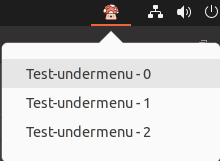
I also tried to set one of the menu label with a markup style.
    test_item = Gtk.MenuItem("")
    label = test_item.get_children()[0]
    label.set_markup("<b>Click here</b>")
Interestingly, the text wasn’t applied with the style.
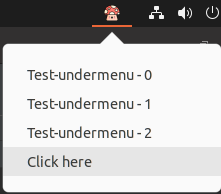
At this point, I didn’t know how the app indicator work to determine whether I could create something similar to the trailer app. Questions that I want to figure out was:
- Why do we need the additional extension to display the app indicator icon and menu?
- Why did the markup styling didn’t apply on the app indicator menu label?
So I started digging into the details and noted my findings in the rest of this post.
Displaying the app indicator menu
Re-reading the official documentation, particularly on the “Software Architecture” section, I begin to see why the extension component was necessary for the python app indicator example to work.
In previous versions of Ubuntu, there was a package called indicator-applet to display the app indicator icon and menu on the desktop UI. The menu are coming from the application through the D-Bus. This package is part of the Unity graphical shell that Ubuntu was using. However since Ubuntu 17.10, Ubuntu switched to using GNOME as the graphical shell. Furthermore, the official design for GNOME are moving away from having status icon as part of the user interface.
As a result, we need to install gnome-shell-extension-appindicator to continue to use the existing approach to create app indicator icon and menu. This is because the extension largely performs a similar functionality as indicator-applet described in the documentation.
System overview
When the python application starts, it creates an app indicator object with information such as the icon file path and the type of status icon. Then the application creates a GtkMenu object and pass the menu to the app indicator. The app indicator will pass the menu to dbusmenu library and parse the GtkMenu object recursively to create DbusmenuMenu and DbusmenuMenuItem. After that, the app indicator will create a dbusmenu server and register a StatusNotifierItem on the D-Bus.
The D-Bus is a message bus system that is available on Ubuntu for communication between processes and applications. There is a daemon running in the background to route messages. The python application uses the D-Bus to communicate with the extension and vice versa. For further information and general concepts about D-Bus, refer to the officiial tutorial. To check the D-Bus messages exchanged for app indicator icon, we can watch the D-Bus messages using dbus-monitor command in the terminal.
For example, the following message was emitted to the daemon when the python application registers status notifier item on the D-Bus.
method call time=1652169917.112493 sender=:1.184 -> destination=:1.37 serial=14 path=/StatusNotifierWatcher; interface=org.kde.StatusNotifierWatcher; member=RegisterStatusNotifierItem
   string "/org/ayatana/NotificationItem/example_simple_client"
- The
senderis 1.184, representing the python application. - The
destinationis 1.37, representing the extension. - The
pathis the object path where the D-Bus message is send to. - The
interfaceis the public contract of the object on the path, indicating the members we can call on the object path. - The
memberis the member of the object that we are calling through this message. It could be a method that’s return value or a method to emit a signal. In this case, we are callingRegisterStatusNotifierItemwhich is used to emit a signal to register the status notifier item. - The string value is the notification item’s path that we pass in when calling
RegisterStatusNotifierItem
Next, gnome-shell-extension-appindicator have a watcher running in the background, watching for any new StatusNotiferItem on the D-Bus. Upon new StatusNotifierItem, the watcher will create a proxy app indicator object and connect the proxy app indicator to the StatusNotifierItem. The proxy app indicator is used to access the app indicator information from the StatusNotifierItem.
Truncated message for retrieving information on the StatusNotifierItem from the extension by calling GetAll
method call time=1652169917.115926 sender=:1.37 -> destination=:1.184 serial=1354 path=/org/ayatana/NotificationItem/example_simple_client; interface=org.freedesktop.DBus.Properties; member=GetAll
   string "org.kde.StatusNotifierItem"
method return time=1652169917.116081 sender=:1.184 -> destination=:1.37 serial=15 reply_serial=1354
   array [
      dict entry(
         string "Id"
         variant             string "example-simple-client"
      )
      dict entry(
         string "Category"
         variant             string "ApplicationStatus"
      )
      dict entry(
         string "Status"
         variant             string "Active"
      )
      dict entry(
         string "IconName"
         variant             string "/home/wal8800/workspace/github-notifier/images/mushroom.png"
      )
      dict entry(
         string "Menu"
         variant             object path "/org/ayatana/NotificationItem/example_simple_client/Menu"
      )
      ...
   ]
The watcher also creates an indicator status icon object with a dbusmenu client. The indicator status icon object represents the app indicator icon and menu that is going to be render on the UI. The dbusmenu client connects to the dbusmenu server using the menu path from the StatusNotifierItem. Once the indicator status icon object is created, the extension will render the app indicator icon and menu on the Desktop UI.
Any state changes or events on app indicator menu from the python application will sync across to the extension and vice versa. This occurs in the communication betweeen the dbusmenu server and dbusmenu client. For example, when I open up the menu by clicking on the icon then clicking on one of the items and closing menu. There are messages for each of the events.
sending “opened” event to the python application from the extension and triggering “AboutToShow” hooks
method call time=1652170713.678815 sender=:1.37 -> destination=:1.184 serial=1446 path=/org/ayatana/NotificationItem/example_simple_client/Menu; interface=com.canonical.dbusmenu; member=Event
   int32 0
   string "opened"
   variant       int32 0
   uint32 0

method call time=1652170715.908974 sender=:1.37 -> destination=:1.184 serial=1446 path=/org/ayatana/NotificationItem/example_simple_client/Menu; interface=com.canonical.dbusmenu; member=AboutToShow
   int32 0
method return time=1652170715.909142 sender=:1.184 -> destination=:1.37 serial=23 reply_serial=1445
method return time=1652170715.909215 sender=:1.184 -> destination=:1.37 serial=24 reply_serial=1446
   boolean false
sending “clicked” event
method call time=1652170717.274419 sender=:1.37 -> destination=:1.184 serial=1447 path=/org/ayatana/NotificationItem/example_simple_client/Menu; interface=com.canonical.dbusmenu; member=Event
   int32 5
   string "clicked"
   variant       int32 0
   uint32 0
method return time=1652170717.274636 sender=:1.184 -> destination=:1.37 serial=25 reply_serial=1447
sending “closed” event
method call time=1652170717.275973 sender=:1.37 -> destination=:1.184 serial=1448 path=/org/ayatana/NotificationItem/example_simple_client/Menu; interface=com.canonical.dbusmenu; member=Event
   int32 0
   string "closed"
   variant       int32 0
   uint32 0
Finally, when the python application exits, the StatusNotifierItem is deregistered. The extension’s watcher will pick up the deregistration and clean up the proxy app indicator along with the indicator status icon.
So can we style the app indicator’s menu item?
Diving into the dbusmenu library, the python application’s dbusmenu server doesn’t pass markup styled text to the indicator status icon’s dbusmenu client in the extension. The server sync across:
- The menu structure
- The menu content (plain label string)
- The menu action/triggers
This means if the menu’s label that we are passing to the extensions contains markup style, the styling doesn’t get passed to the app indicator menu’s label. Hence why we didn’t see the bold styling in the modified example.
What’s next
To make the markup styling appear on the app indicator menu, one approach is to modify the extension and the dbusmenu library to allow styling to be passed through. However, that requires changing multiple components and maintaining these modified libraries.
Another option is to use gjs to build out the app indicator application from scratch. It is a fully featured javascript sdk for building GNOME desktops GUI application and have amazing support for styling the UI. Furthermore, the extension is already built with gjs, this means we can build our own custom app indicator icon application.
Lastly, we can also use the non-styled app indicator menu to open up a window that allows us to fully customise the style and the content within the window. For example, jetbrain’s toolbox application have this behaviour.
Overall, it looks like there is a decent amount of work to get an equivalent application on Ubuntu so I won’t try to create my own app indicator application. Currently, I find using github slack notification and the github pull requests page is sufficient.